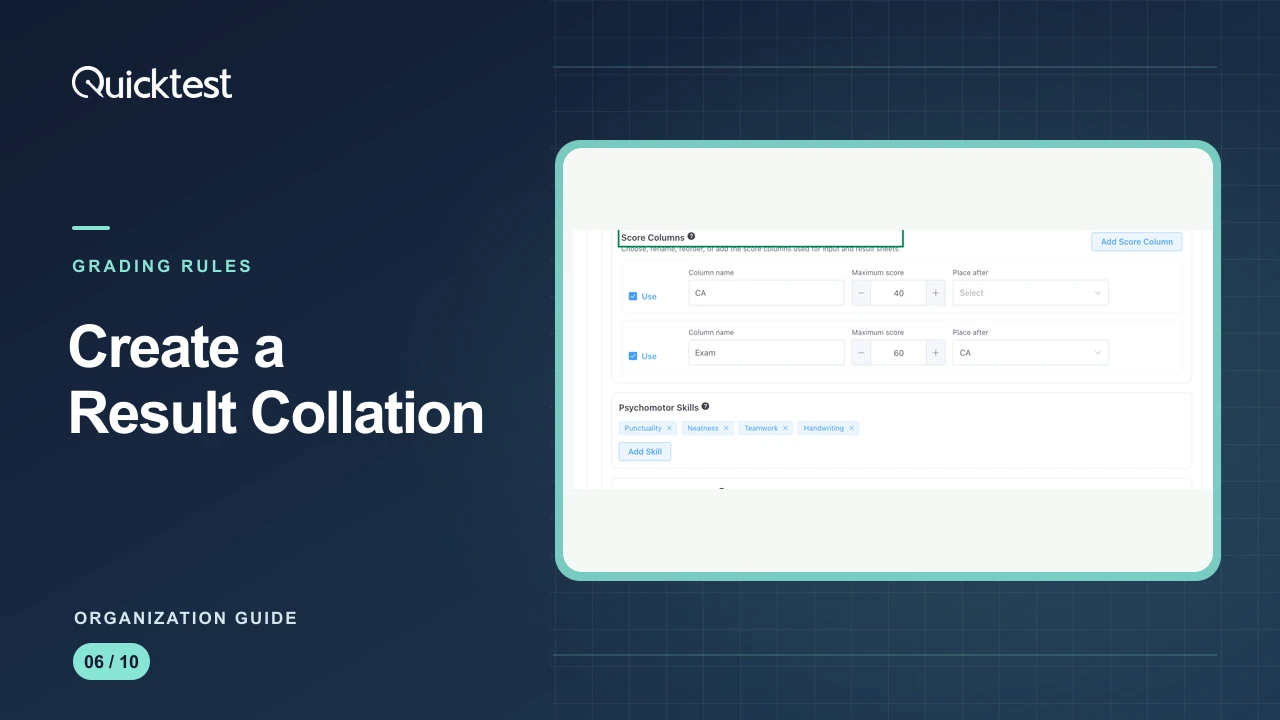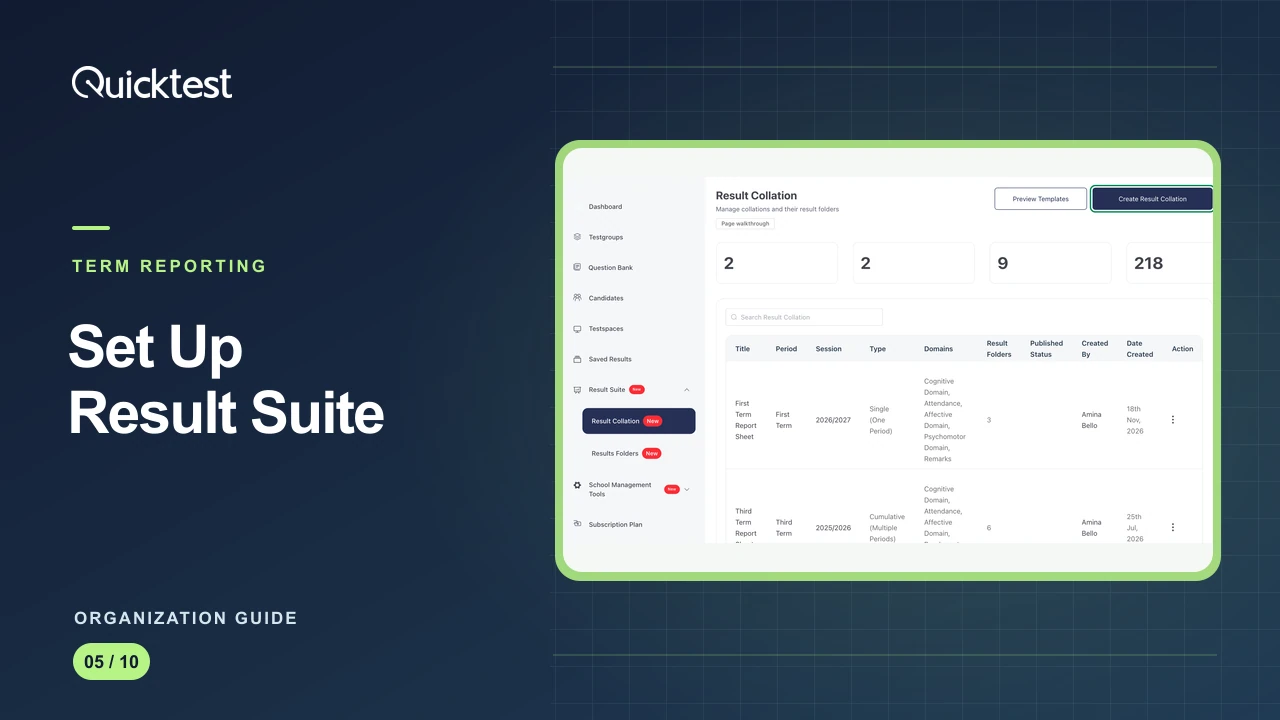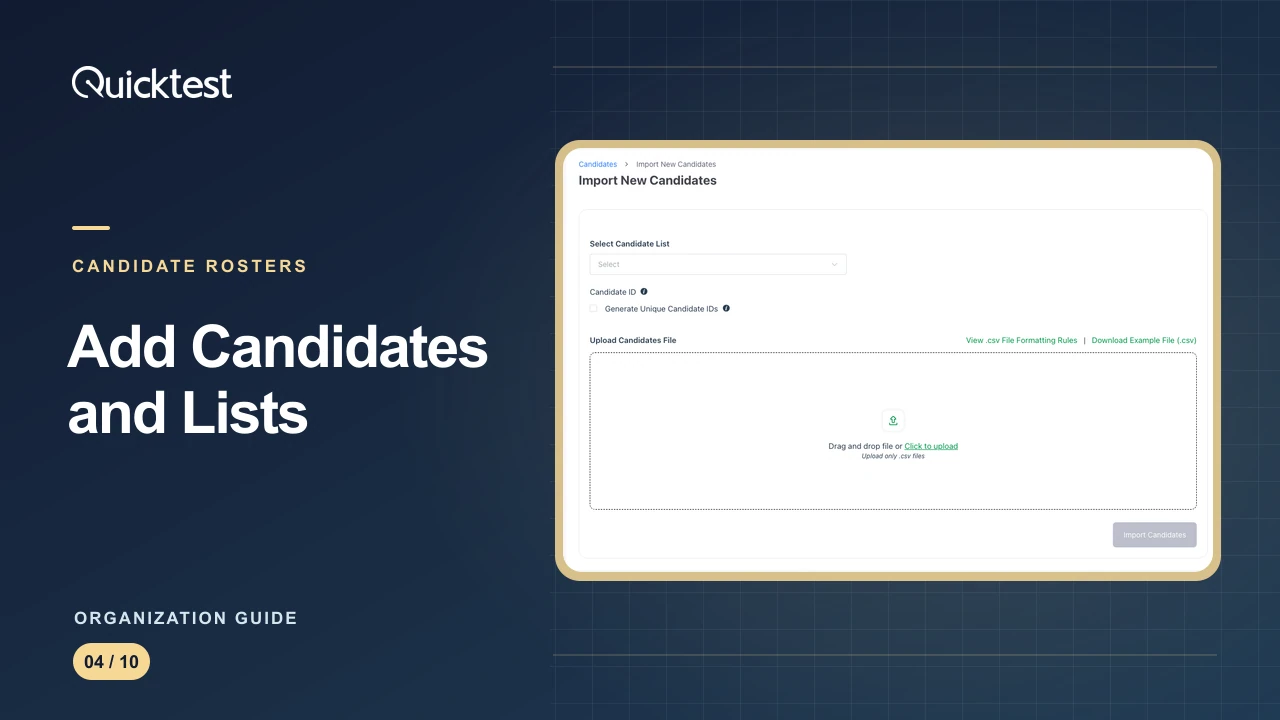
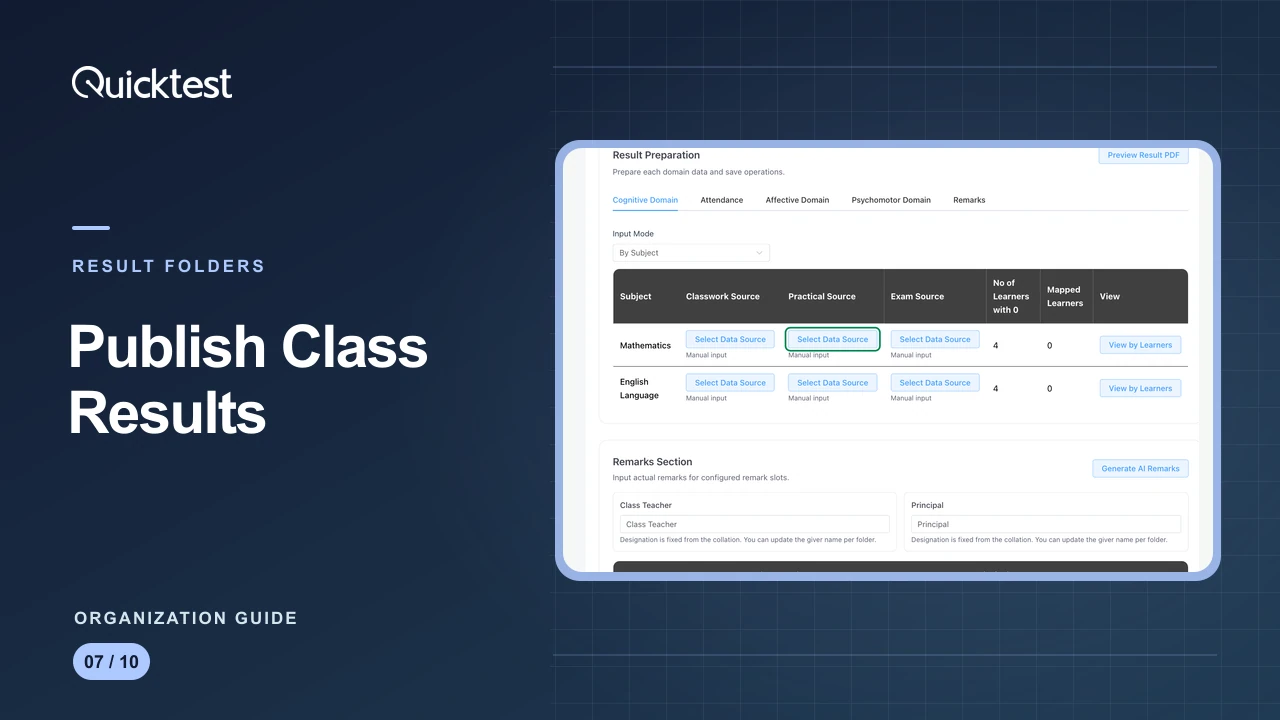
A Result Folder is where a class’s actual results are prepared and released. Start with an academic period, a saved Result Collation, the class Test Group and a verified candidate list. This example uses JSS 1A First Term under First Term Results.
1. Create the folder and assign its staff
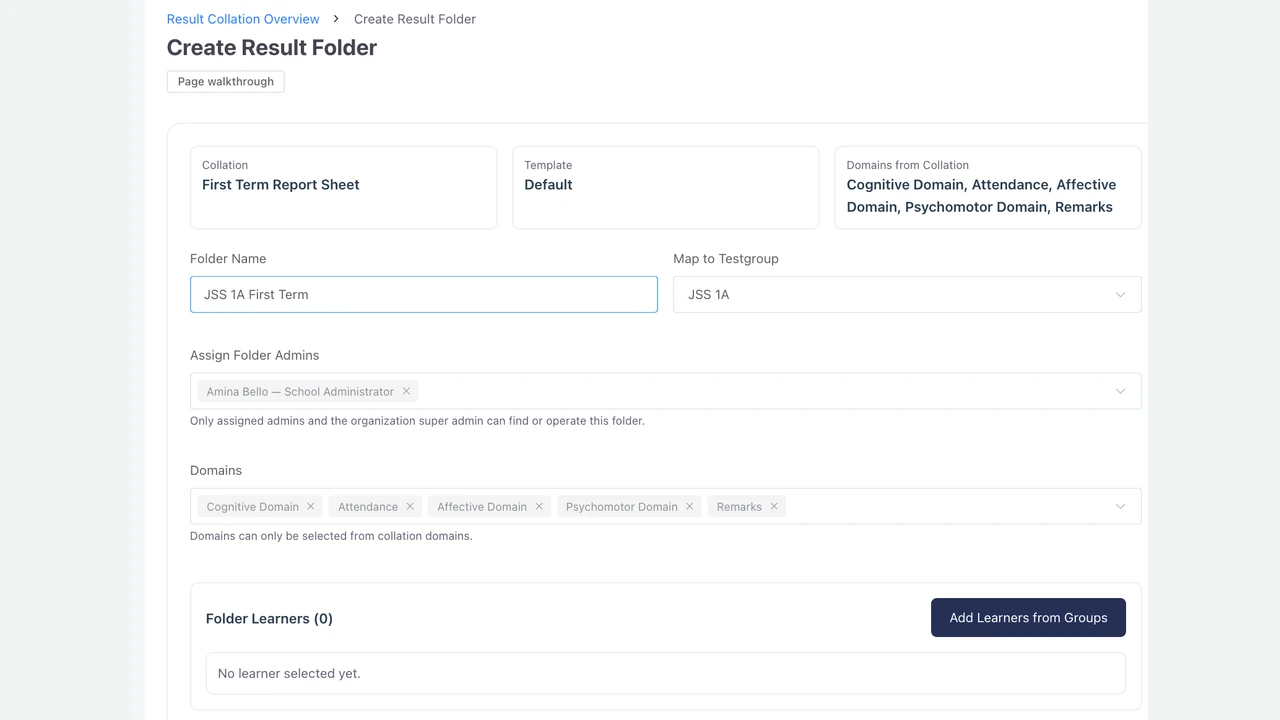
- Open the collation overview and choose Create Result Folder.
- Name the folder and set Map to Testgroup to JSS 1A. That group supplies the subject list.
- Use Assign Folder Admins to choose at least one responsible staff member. Staff also need the relevant Result Folder permissions.
- Choose the domains this class will use. Select Add Learners from Groups, open the matching candidate list and add the intended learners. Check the roster, then select Create Folder.
2. Put each score in its subject and column
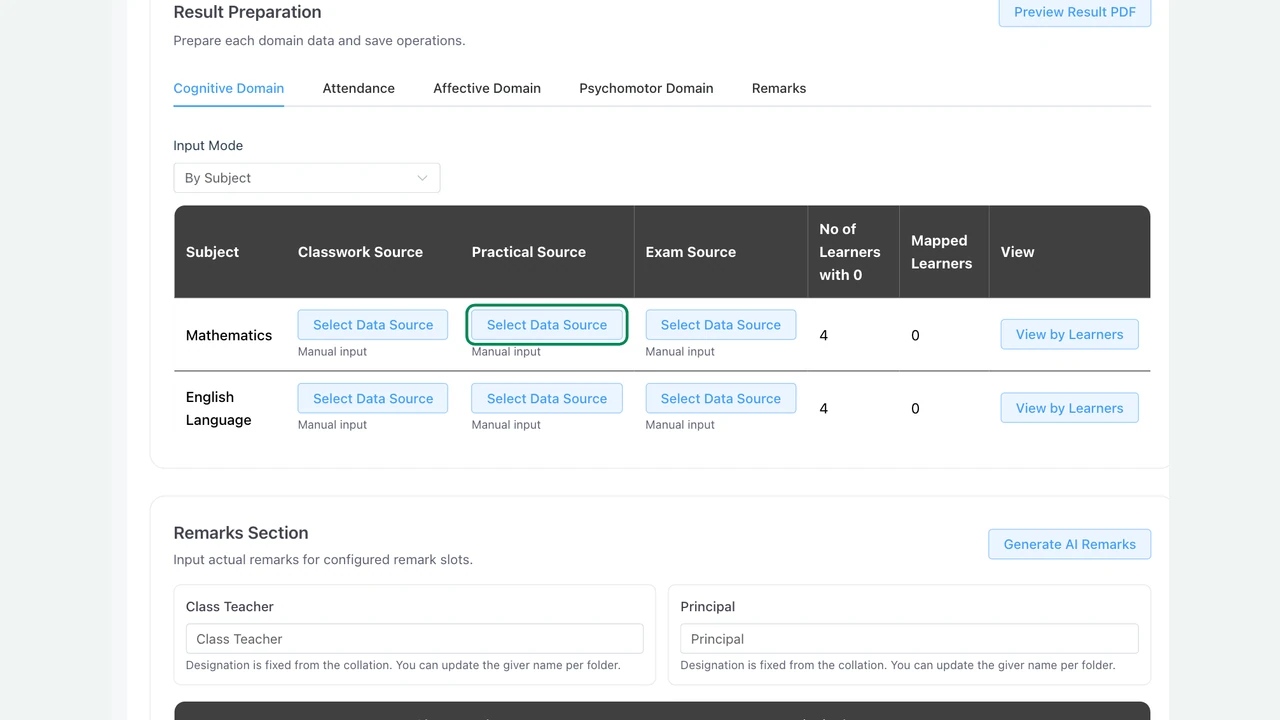
Find the folder in Result Suite → Results Folders and choose Open Folder Operations. Under Result Preparation, open the cognitive domain and use By Subject. For a Mathematics practical score, choose Select Data Source in the Practical column on the Mathematics row. Each operation targets the selected subject and column.
- Manual Input: Enter marks against the learner names and the column maximum.
- Saved Results: Choose the saved assessment that matches the class and subject.
- Standard CSV: Use the school CSV layout shown in the import instructions. Check the detected subject and how the candidate IDs or emails match the roster.
- AI Import: Review the extracted marks and learner matches before applying a supported file. Check warnings and unmatched records. AI analysis uses organization credits.
3. Save, preview and publish
- Use By Learners to review totals and grades. Complete the configured domains and enter remarks. If you generate remarks with AI, review and apply the selected suggestions first.
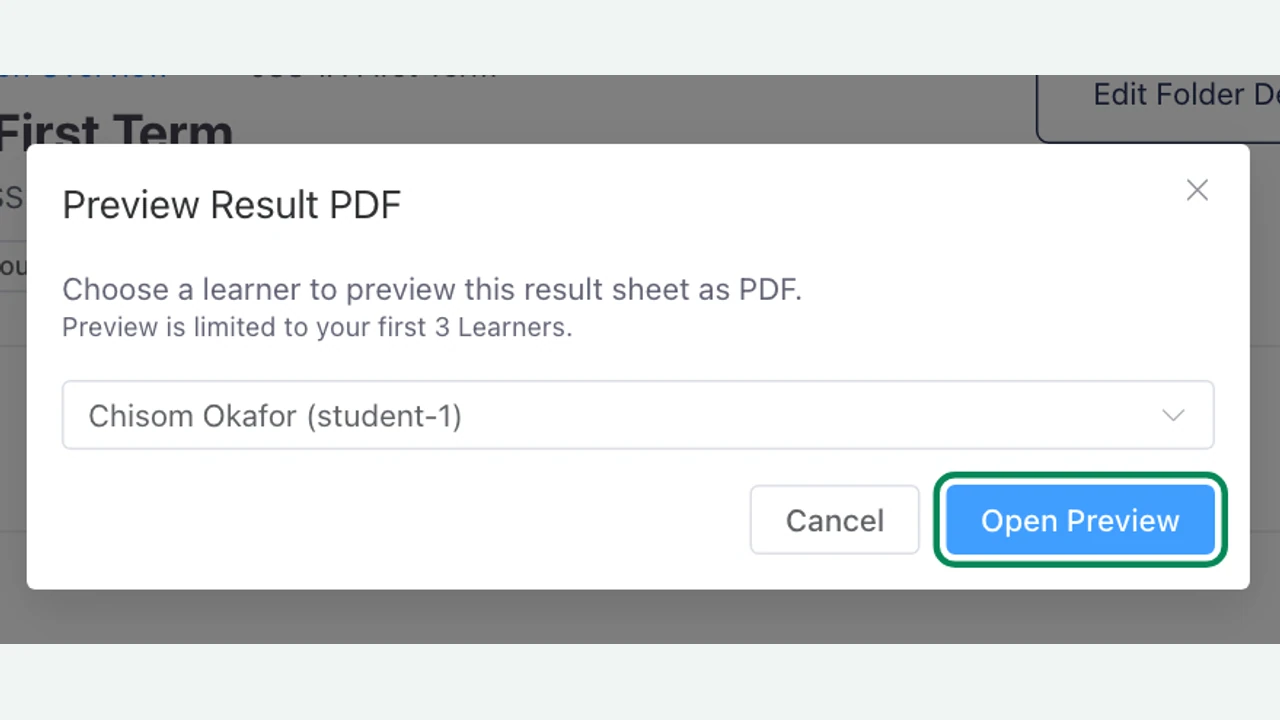
- Choose Save Operations, then Preview Result PDF. Choose a sample learner from the available list and open the preview. Check score order, grade, remarks and signatures against your source.
- After approval, choose Publish Results and confirm. Verify the folder status. The collation has its own publication control, so check the status of the specific class folder.
- If you correct a mark later, save your changes, preview again and choose Publish Updates to replace the previously published version.