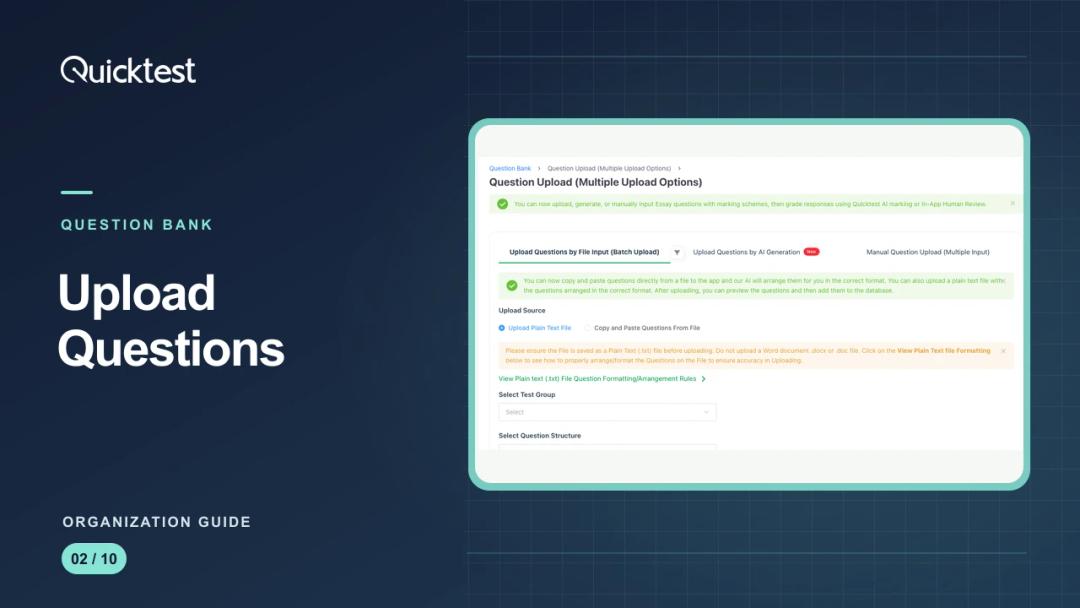
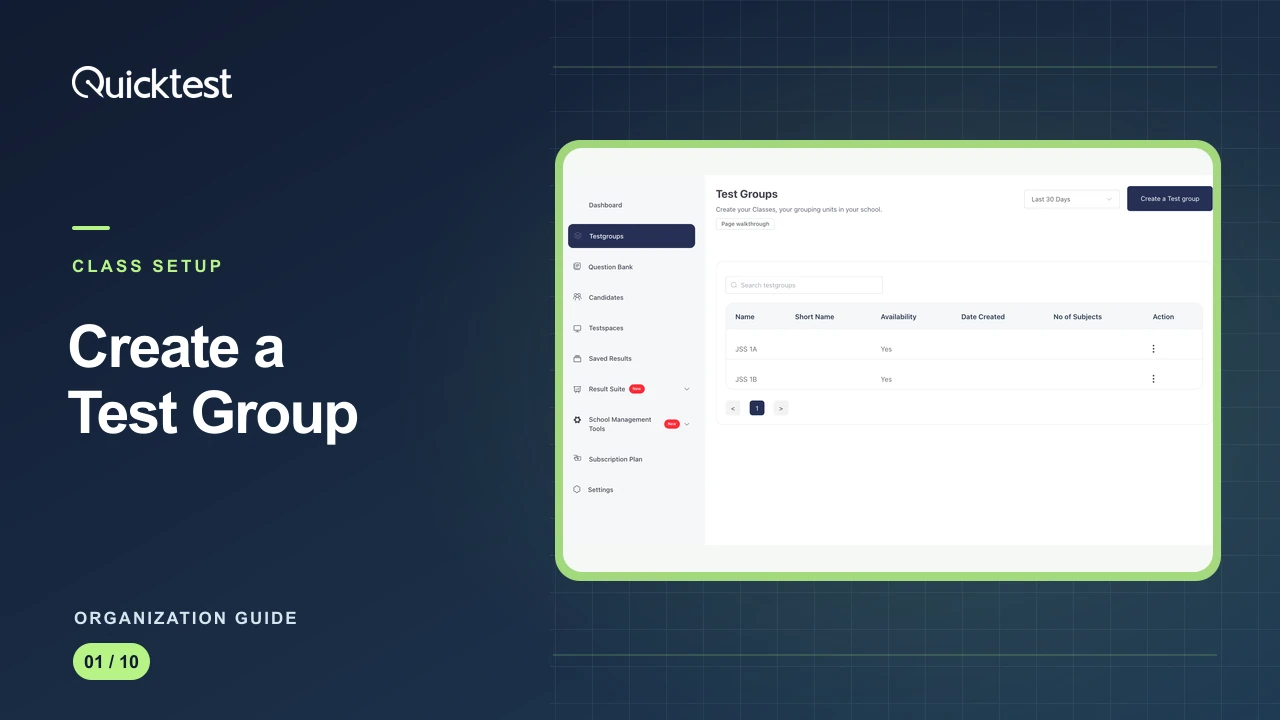
A Test Group tells Quicktest which subjects belong to a class or cohort. A candidate list tells it who belongs to that cohort. For a school running assessments for JSS 1A, you might name the Test Group JSS 1A and the roster JSS 1A Candidates. You can reuse those records when you upload questions, set up a Testspace or prepare a class result folder.
1. Open Testgroups and name the class
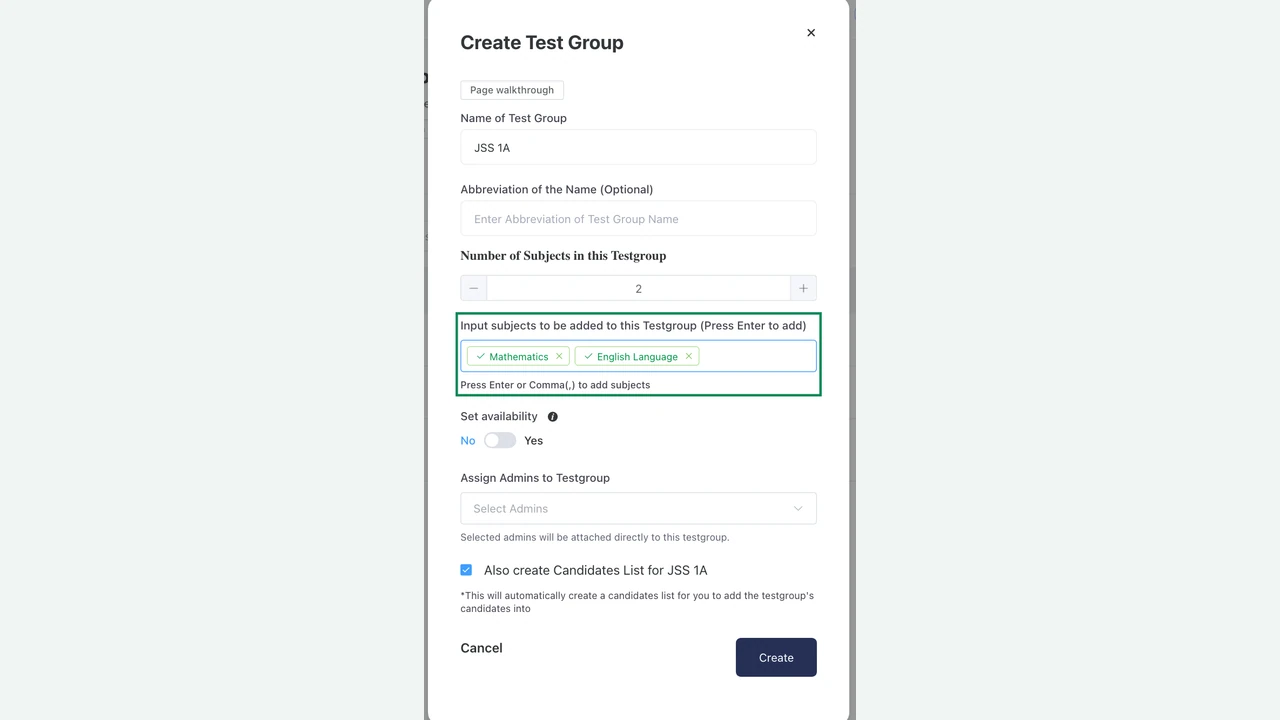
Sign in to your Quicktest organization dashboard. In the sidebar, choose Testgroups, then select Create a Test group. Enter JSS 1A under Name of Test Group. You can add an abbreviation if your school uses one. If you run parallel classes, include the section in the name so staff can distinguish JSS 1A from JSS 1B later.
2. Add the subjects your staff will use
- Set Number of Subjects in this Testgroup. For this example, use 2.
- Type Mathematics in the subject field and press Enter.
- Type English Language and press Enter again. A comma also commits a subject.
- Check the subject tags and the final count before saving. Use the same subject spelling your teachers will recognise in the Question Bank and Result Suite.
3. Choose availability, staff access and a matching list
Keep Set availability at No while you are preparing the questions and candidate roster. When the class is ready for staff to build Testspaces from it, return to Edit Testgroup and switch it to Yes. If class staff already have dashboard accounts, you can select them under Assign Admins to Testgroup. They also need the permissions for the tasks they will perform.
Keep Also create Candidates List for JSS 1A checked if you need a new matching roster. If the roster already exists, clear the box to avoid creating a duplicate. Select Create.
4. Check both records before moving on
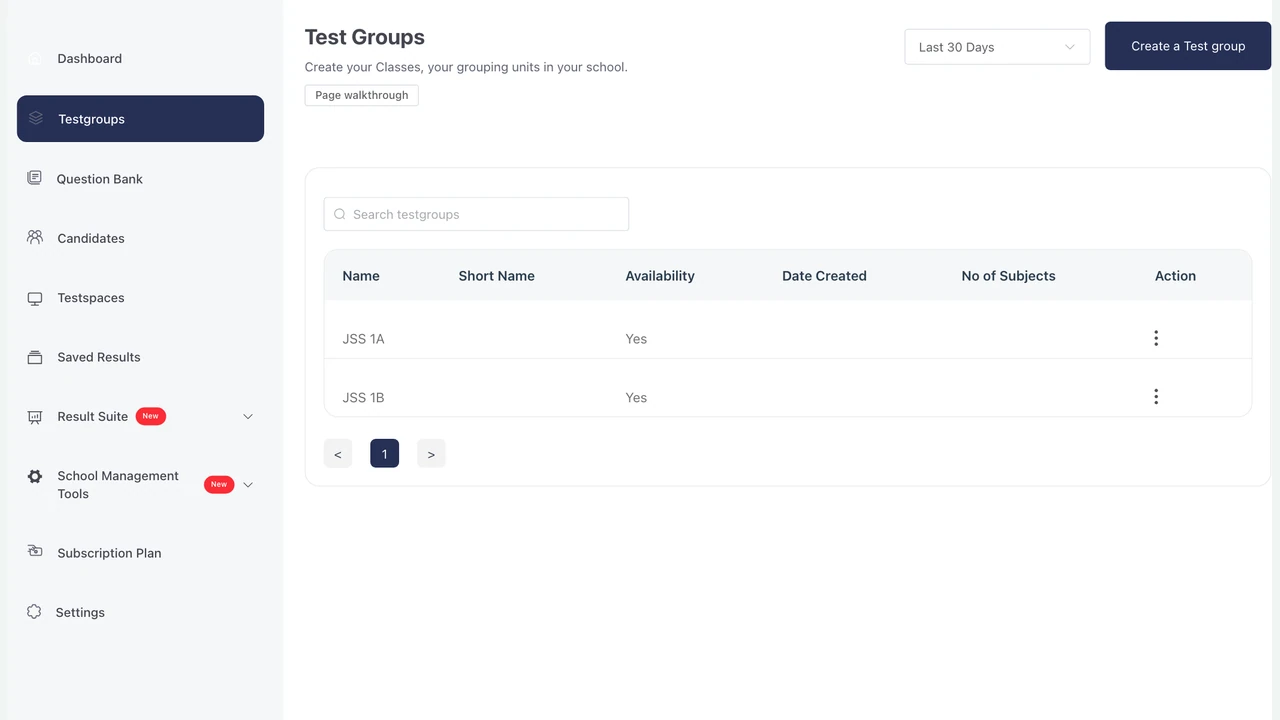
Find the class in Testgroups and check its subjects. If you asked Quicktest to create the roster, open Candidates → Lists and confirm it is there. Once your class and subject names are settled, you can add Mathematics questions to the right place on the first attempt.