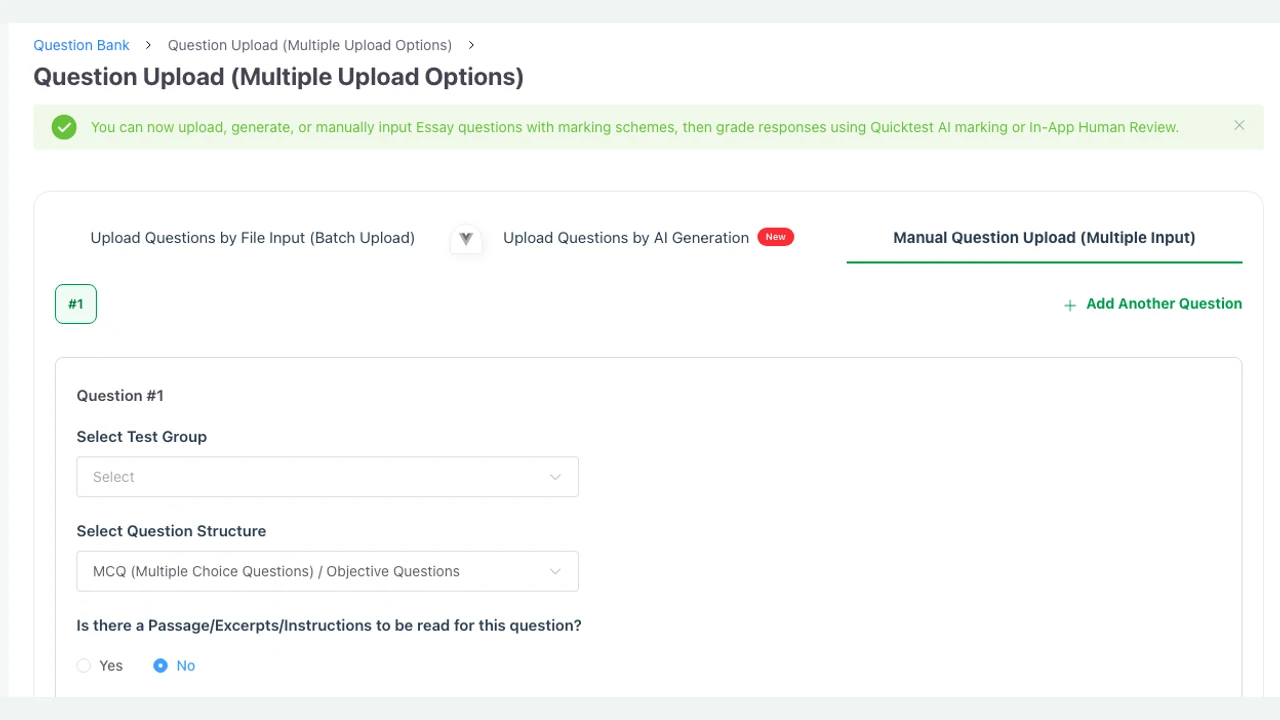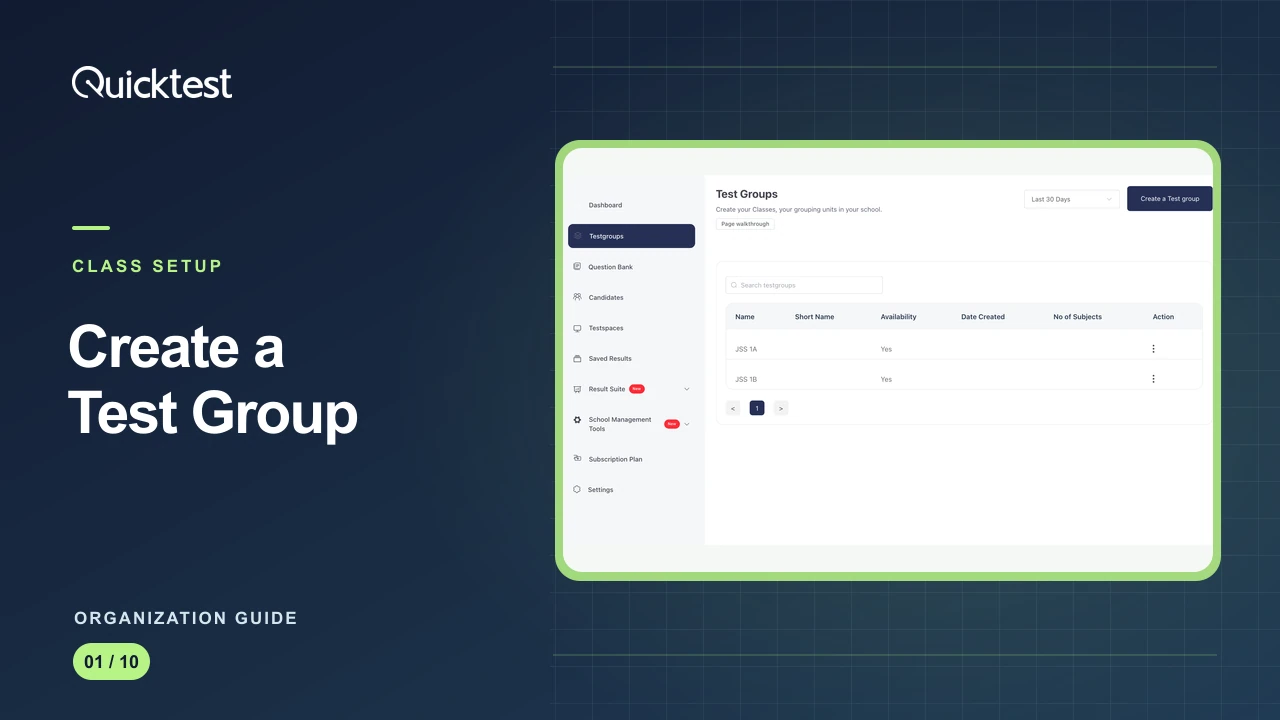
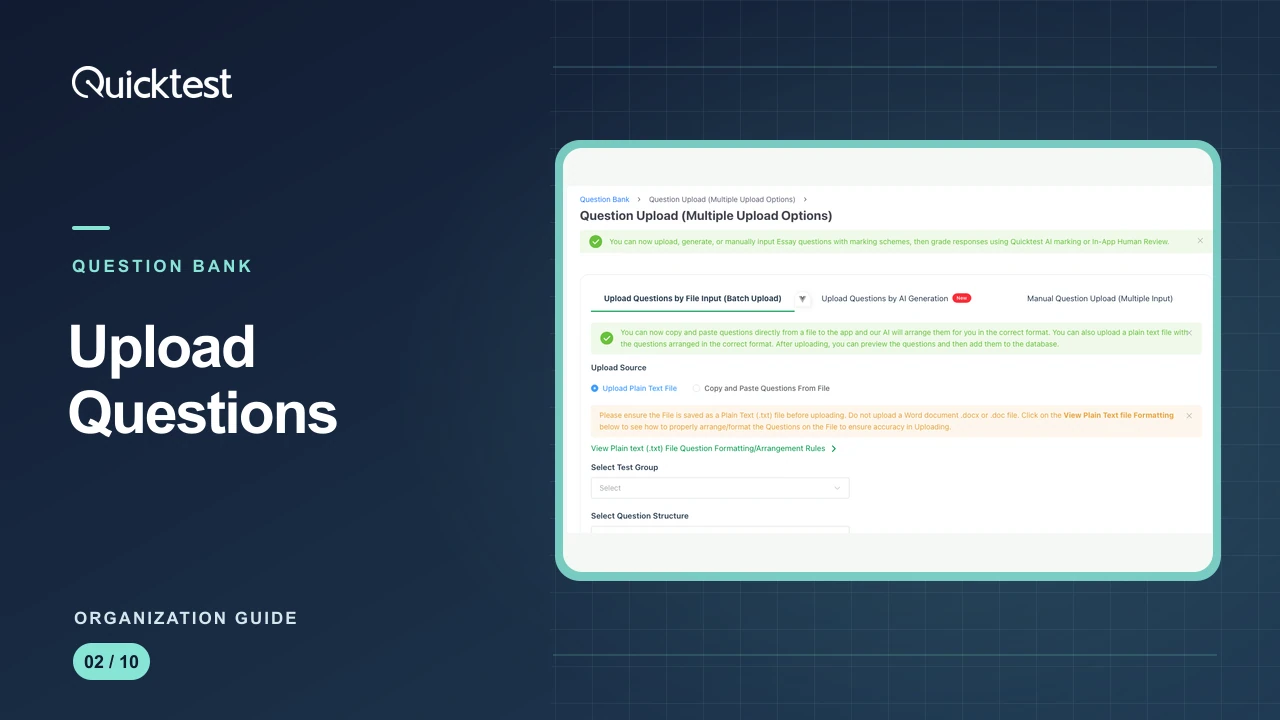
Before you build a CBT, put its questions in the correct Test Group and subject. For a JSS 1A Mathematics quiz, first create the Test Group and add Mathematics. Then open Question Bank → Upload Questions. The upload page has separate tabs for batch upload, AI generation and manual entry.
1. Select the group, subject and question type
Choose JSS 1A under Select Test Group and Mathematics as the subject. Choose the question structure that matches the assessment, such as multiple choice or essay. Confirm this selection before you upload a batch: a file with correct answers can still land in the wrong subject if the scope is wrong.
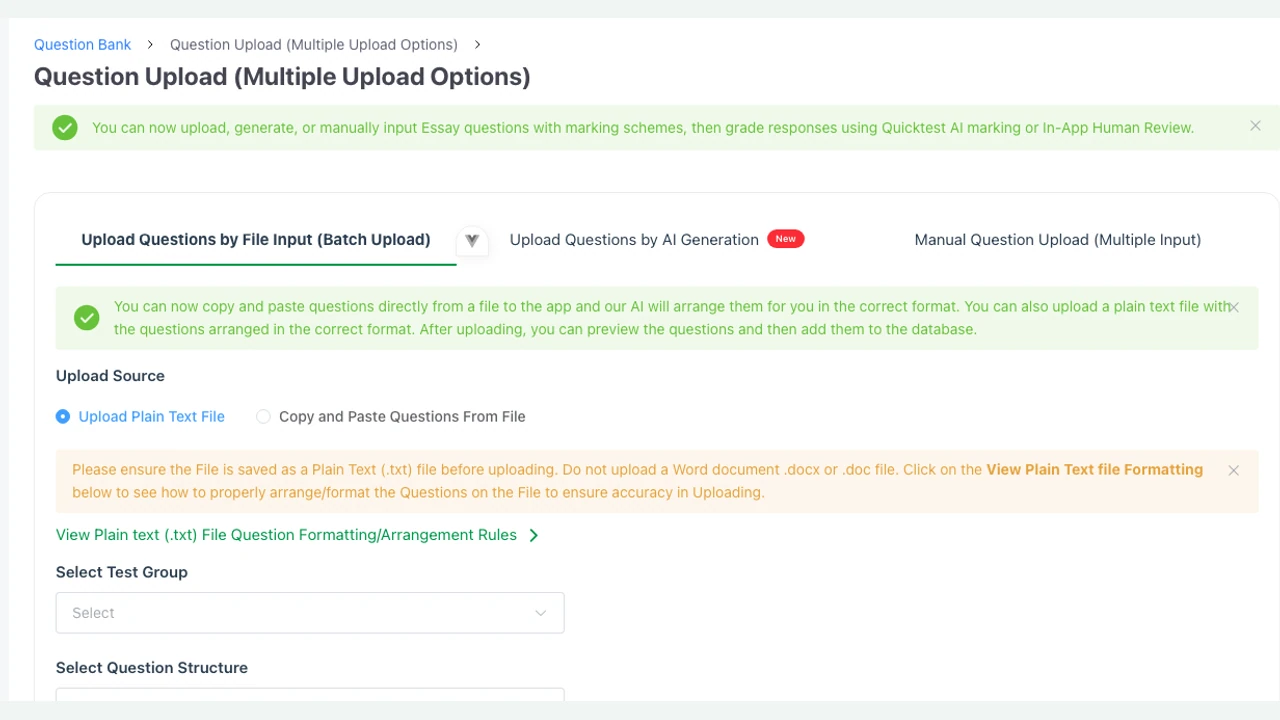
2. Use batch upload for a prepared paper
- Choose Upload Questions by File Input (Batch Upload) and select Upload Plain Text File.
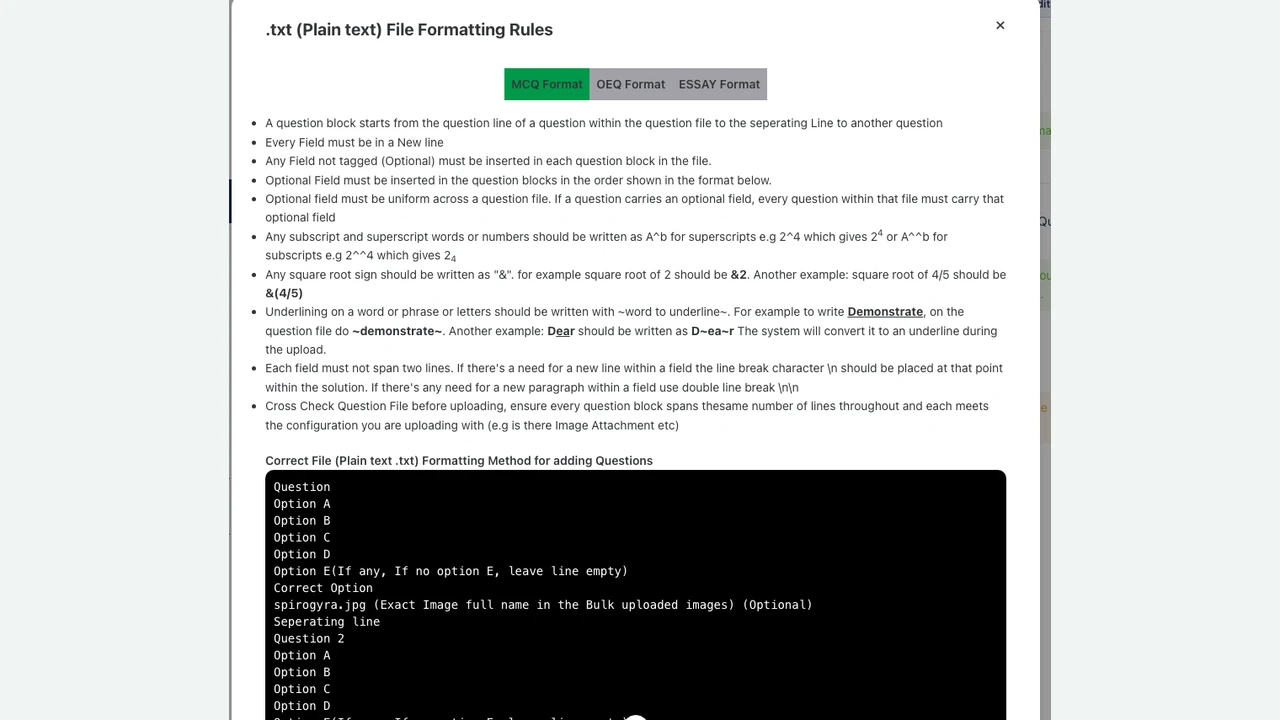
- Open View .txt (Plain Text) File Formatting Rules. Use the example for the question type you selected. Keep the prescribed order for each question block, including answer options, the correct option and separators. If you use an optional field, follow the rules for keeping the layout consistent throughout the file.
- Save your paper as a .txt file and select it in the upload area. Use a small trial batch if this is your first import.
- Read the preview. Check the question count and compare the answer key to the original paper. Look for missing diagrams or lines where one question ran into another.
- Select Upload Question to Database when the preview matches the paper.
3. Add a few questions manually, or use AI for a draft
For a short quiz, use Manual Question Upload (Multiple Input). Enter the question, options and correct answer for each multiple choice item. Add a marking scheme for essay items. Use Add Another Question to enter several in one upload. For an existing paper you can paste as text, the batch tab also offers Copy and Paste Questions From File, which uses AI to arrange the text. To draft fresh items, use Upload Questions by AI Generation. Review generated material against the syllabus and approved answers; check any credit estimate before continuing.
4. Verify what the Testspace can select
Return to the Question Bank, filter by Test Group and choose View Questions on the subject row. Open a few items to verify answers, images and marking schemes. Check Availability and mark the approved items available if needed. If you apply a bulk change, check whether you selected This Page or All Pages; the latter can affect every question that matches your filters.