Give each staff member their own Quicktest account. For example, a Mathematics teacher may need to view the class Test Group and upload questions. A result coordinator may need access to a specific class folder, while a bursar may only need fee tools. Decide what each person needs to do before assigning access.
1. Create the staff account
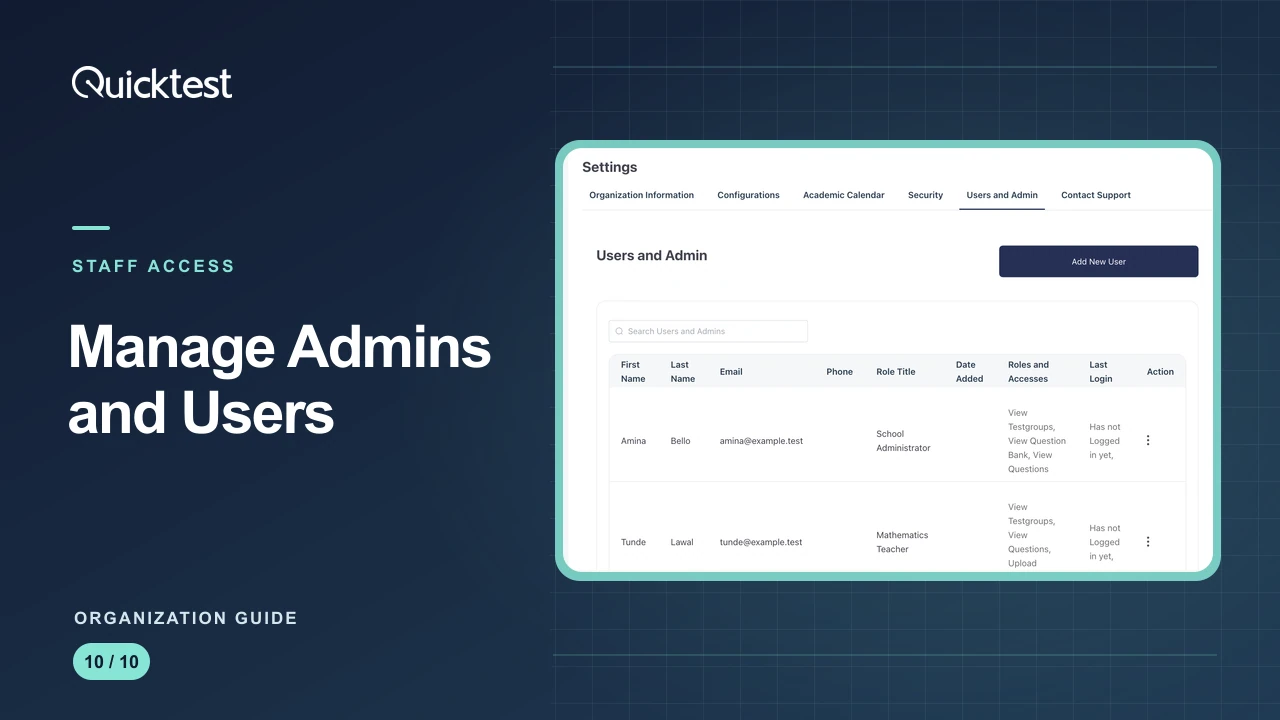
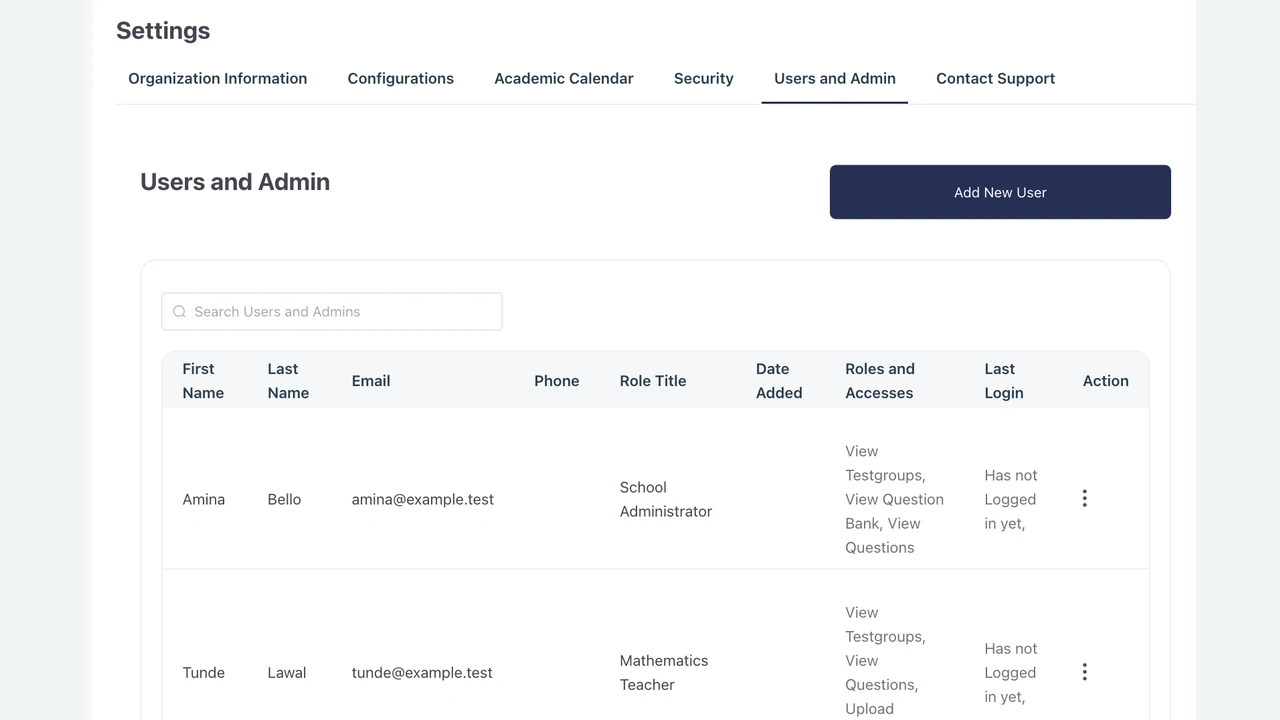
- Sign in with an account that can manage users. Open Settings → Organization → Users and Admin.
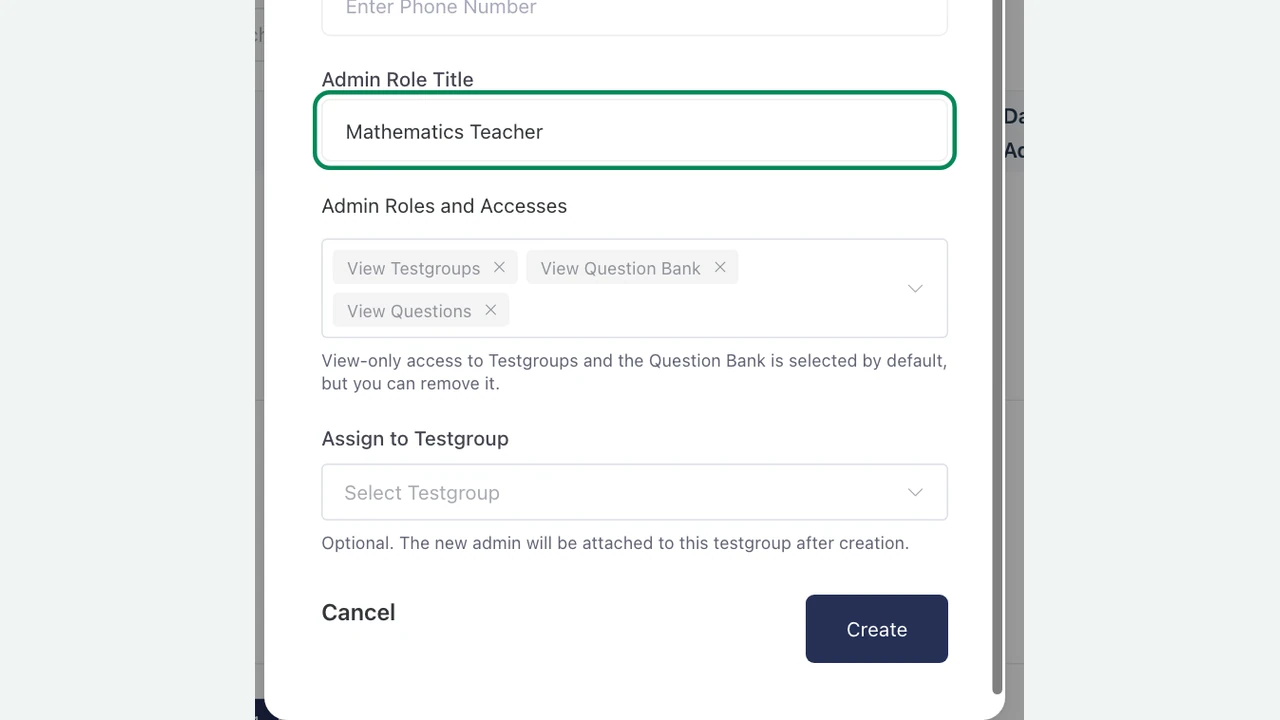
- Choose Add New User. Enter the staff member’s first and last names and verify their email address. Complete the contact fields and enter a descriptive Admin Role Title.
- Under Admin Roles and Accesses, select the permissions needed. The role title is a description; the permissions control what the user can do. Review any view permissions selected by default and remove ones the role does not need.
- Use Assign to Testgroup if the person should be attached to a particular class immediately. Choose Create and check that the account appears in the list.
2. Confirm they can do the right work
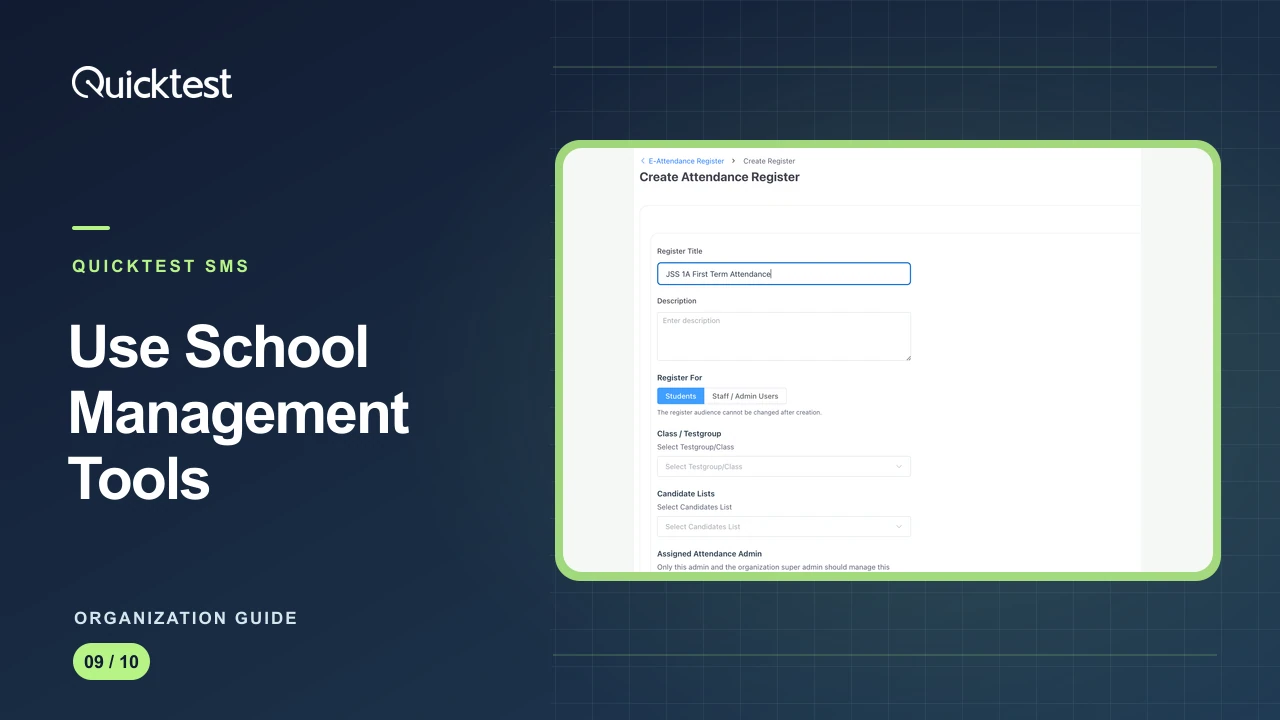
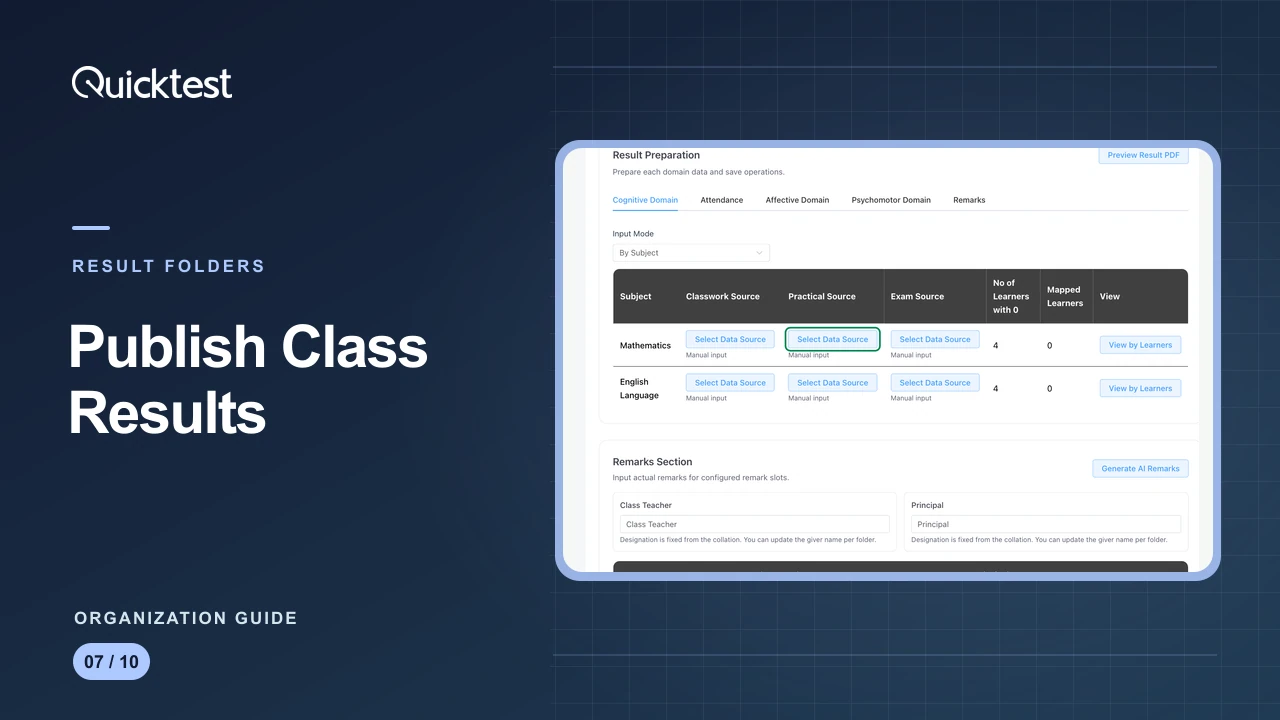
Ask the person to sign in and confirm they can open the required module and perform the task you assigned. For a teacher, try the Question Bank and the intended class. For the Result Folder workflow, check both the Result Folder permissions and the assignment under Assign Folder Admins. Staff who administer attendance also need the relevant access and register assignment.
3. Edit access when duties change
In Users and Admin, search by name or email. Open the row menu, select Edit Admin User, make the required permission changes and choose Update. If a staff member cannot sign in, verify the address before using Resend Credentials. Review class, register and folder assignments when someone transfers duties or leaves.
4. Make access review part of each term
At the start of the term, check that every workflow has an owner: question uploads, test setup, monitoring and results. Remove permissions staff no longer use, update the class assignments and check who should approve publication. This lets people do their jobs without sharing an account or giving everyone dashboard-wide access.